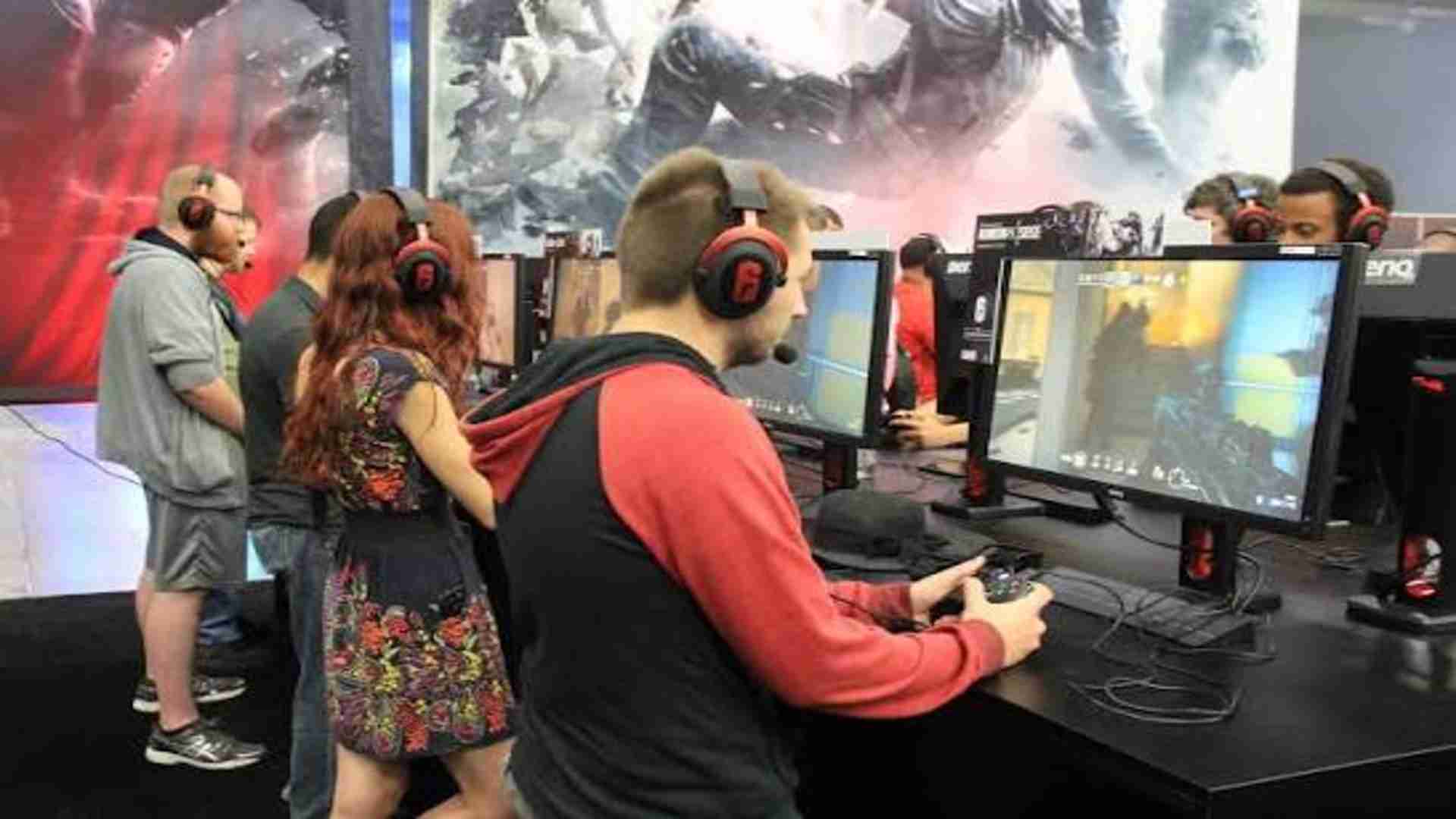
Experiencing connectivity issues in modern cooperative shooters can quickly disrupt an evening of planned gaming with friends. Players jumping into the high-stakes world of Payday 3 occasionally encounter a frustrating roadblock known as the failed to fetch game config data error. This technical glitch prevents the game client from communicating properly with the live servers, locking players out of the main menu entirely.
Verifying Steam and Epic Games Client Integrity
The primary cause behind this configuration issue often links back to corrupted local files or incomplete game updates. Initiating a built-in file verification sequence through your digital storefront can immediately pinpoint and repair corrupted data packets. Right-click the game in your library, select properties, and navigate to the installed files section to trigger the verification process.
Allowing the software client to scan your drive ensures that all network-related configuration files are fresh and intact. If the system detects any anomalies, it will automatically download replacement assets before letting you relaunch the shooter. Many players find that this simple maintenance task bypasses the startup glitch permanently.
Clearing the Digital Download Cache
Accumulated temporary data inside your launcher applications can sometimes block critical server handshakes during the boot sequence. Clearing your download cache forces the client to re-establish a pristine data pipeline with live game databases. Navigate to the main settings panel of your distribution platform, find the download tab, and locate the reset button.
Keep in mind that executing this cache purge will temporarily sign you out of your gaming profile. Once the platform restarts, input your credentials and attempt to launch the heist simulator again to verify connection stability. This basic optimization often solves lingering network discrepancies across multiple online titles.
Adjusting Windows Domain Name System Configurations
When the internal network configurations fail to locate the server endpoints, modifying your operating system setup can resolve the digital traffic jam. Flushing your standard internet cache removes outdated lookup tables that might point toward dead server nodes. Open the command prompt utility as an administrator and execute the standard flushdns utility command.
For players encountering persistent routing problems, shifting to a robust public server array like Google or Cloudflare can provide a much more stable environment. Adjusting these parameters inside your network adapter properties ensures your PC handles outbound gaming requests with maximum efficiency. These small technical adjustments significantly reduce regional matchmaking latency over time.
Troubleshooting Third Party Security Softwares
Aggressive settings within local firewall utilities can mistakenly flag active configuration requests as suspicious external digital activity. Temporarily adjusting your real-time protection parameters helps determine if an overzealous security program is actively isolating your game executable. You can add the main game installation directory to your safety exclusion list to prevent recurring blocks.
Ensuring that both the game executable and its associated anti-cheat frameworks possess administrative clearance prevents unexpected background shutdowns. If you want to optimize your setup further, managing your hardware configurations can dramatically improve your network settings. Restoring proper permissions allows the live configuration scripts to load seamlessly without triggering safety alerts.